> For the complete documentation index, see [llms.txt](https://docs.3dolphins.ai/llms.txt). Markdown versions of documentation pages are available by appending `.md` to page URLs; this page is available as [Markdown](https://docs.3dolphins.ai/bot-settings/dialog-flows/untitled-1/test-the-dialog-on-bot-emulator.md).
# Test the Dialog on Bot Emulator
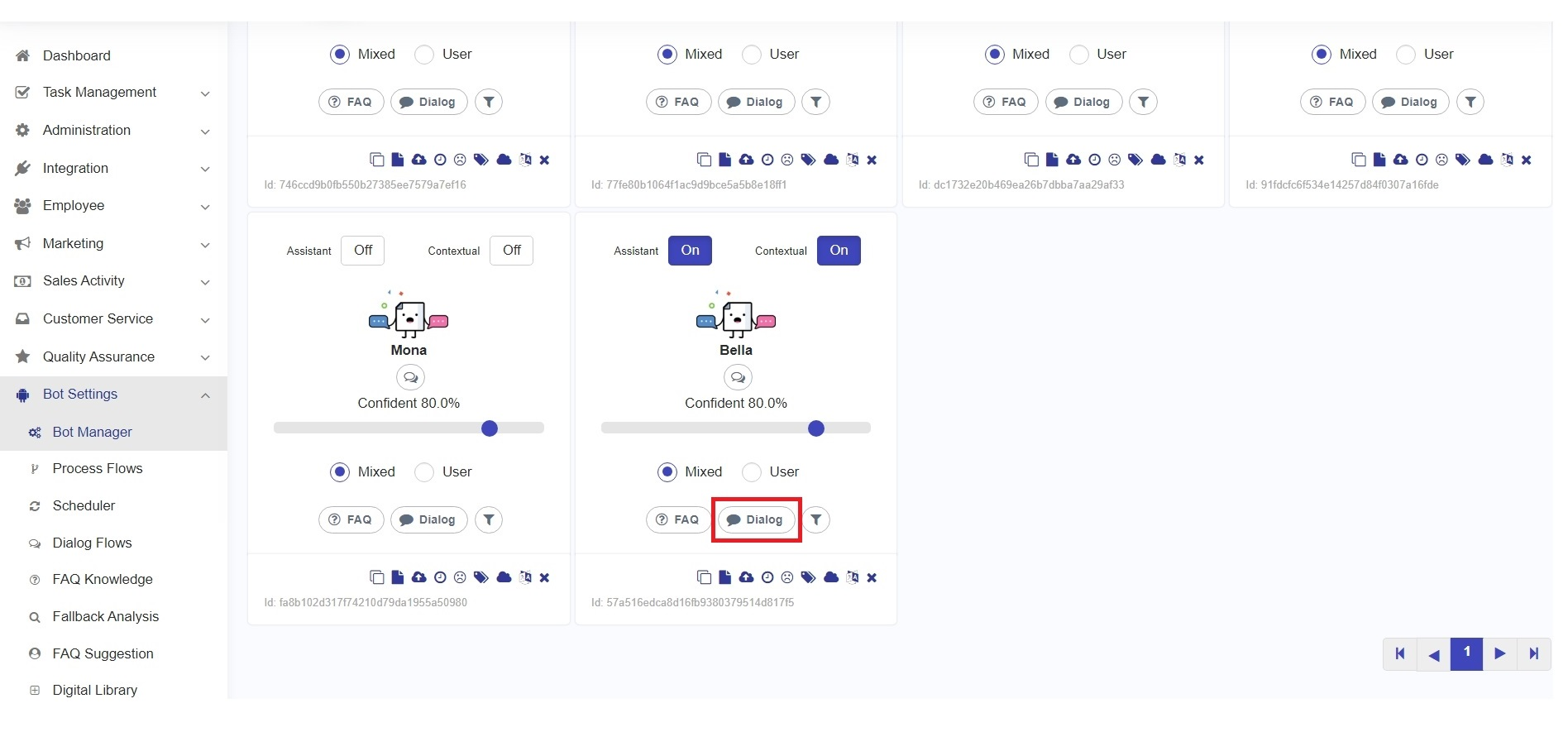
Before testing the Dialog in the Bot Emulator, make sure you have attached the Dialog to the Bot. Go to the **Bot Settings** menu and click the **Bot Manager** submenu. Then, you will see the Bot Manager page. Select the bot and click the **Dialog** button, as shown in the following image.
Dialog
You need to attach the dialog by clicking the **'Attach'** button on the previously created dialog and run the emulator by clicking (  ) as shown in the following image.
Bot Manager
{% hint style="info" %}
Please make sure that the Dialog that will be used is already attached to Bot.
{% endhint %}
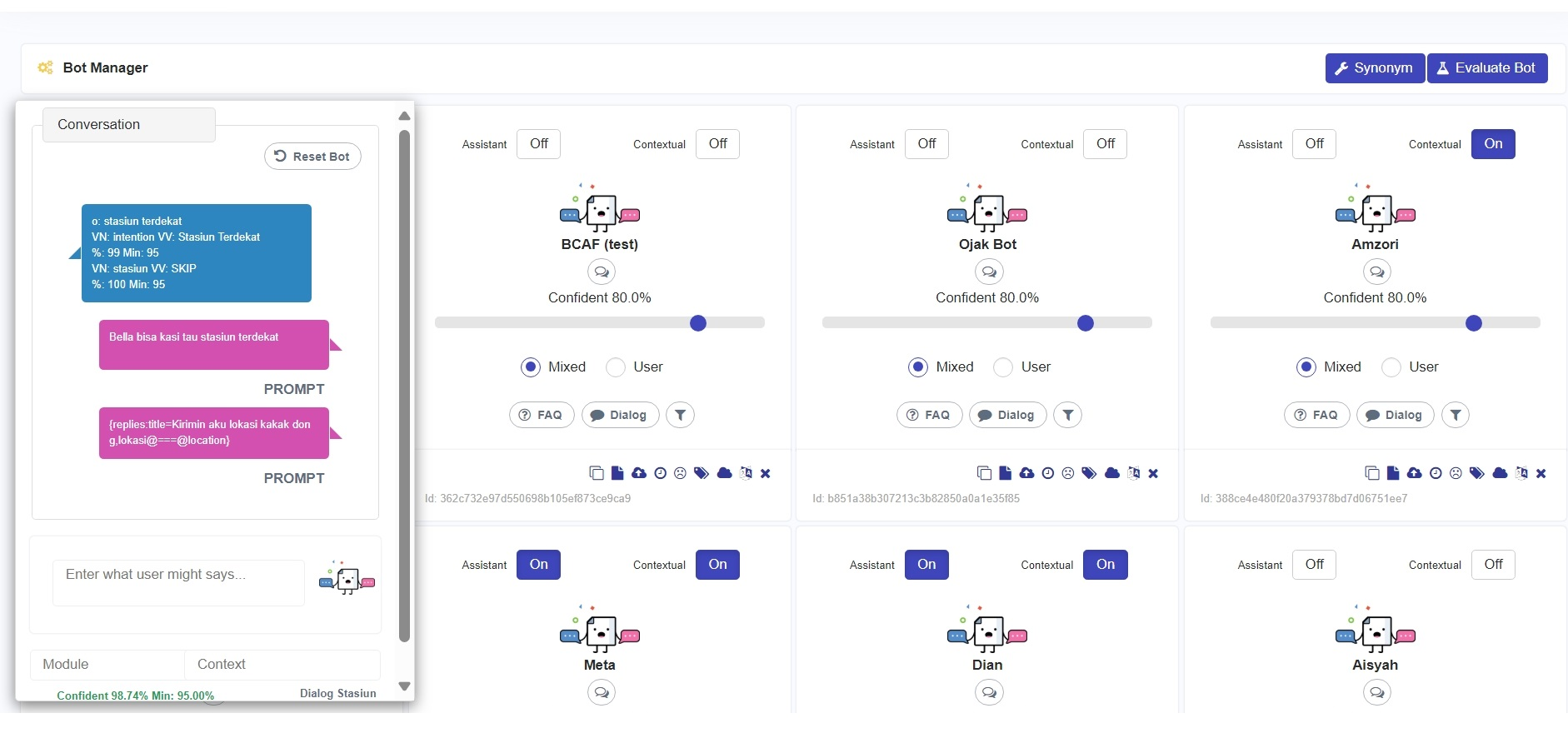
You will see a pop-up form emulator, enter what the customer might say. If process flow or SDK is run on the dialog, you will see a successful response like the image below.