> For the complete documentation index, see [llms.txt](https://docs.3dolphins.ai/llms.txt). Markdown versions of documentation pages are available by appending `.md` to page URLs; this page is available as [Markdown](https://docs.3dolphins.ai/5.3.0-id/integration/chanel-connector/email-inbox/yahoo-settings.md).

# Yahoo Settings

Setelah Anda menambahkan tipe email lain berupa Yahoo, silahkan untuk melakukan beberapa konfigurasi pada akun Yahoo Anda. &#x20;

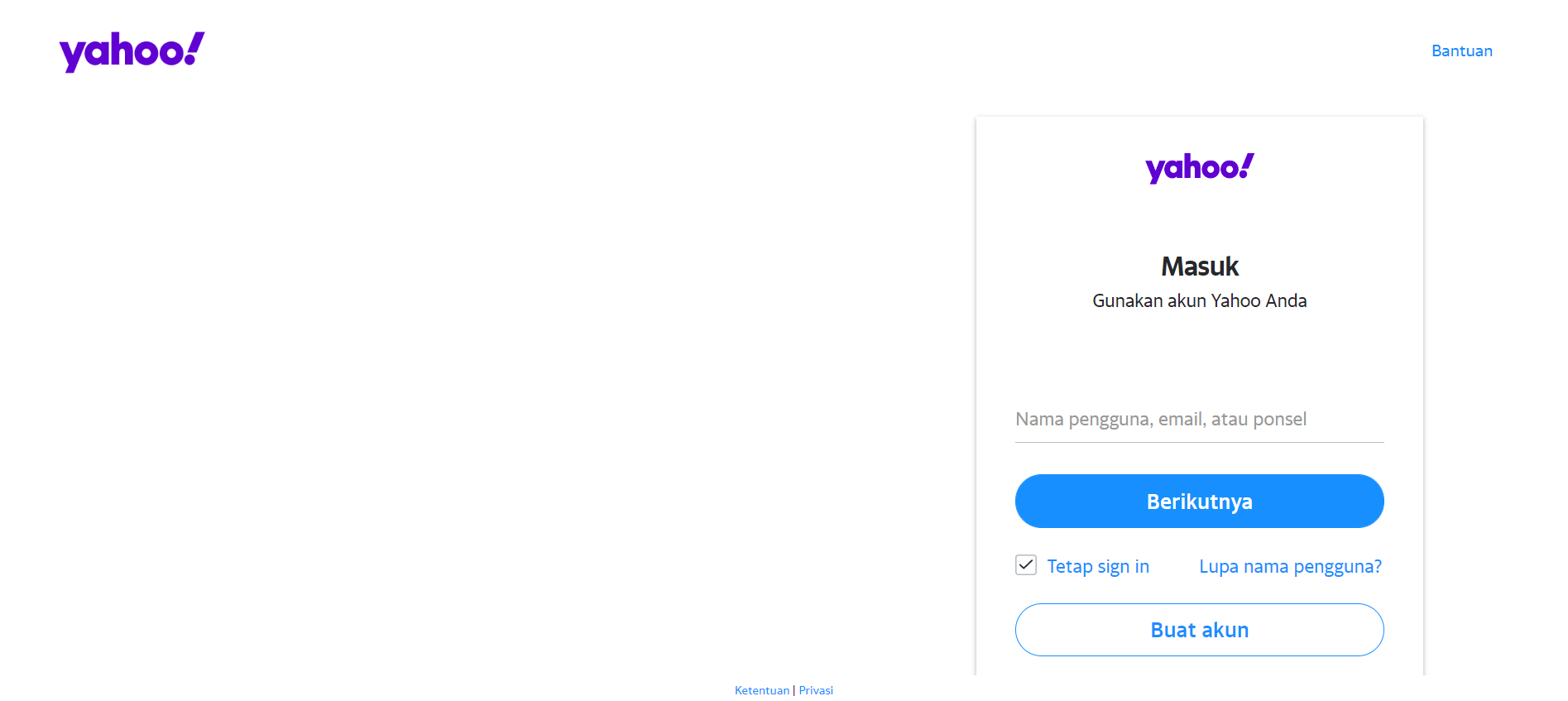
Masuk ke akun Yahoo dengan mengunjungi halaman <https://id.yahoo.com/>. Kemudian, klik tombol **'Masuk'**.&#x20;

<figure><img src="/files/d8d7IY4jVy8P5XgNqzoj" alt=""><figcaption><p>Sign In Yahoo</p></figcaption></figure>

Masukkan alamat email, username, atau nomor ponsel akun yahoo Anda. Lalu, klik tombol **'Berikutnya'**.&#x20;

<figure><img src="/files/gmGysQg0WWrGfXW9ICl6" alt=""><figcaption><p>Login Yahoo Account</p></figcaption></figure>

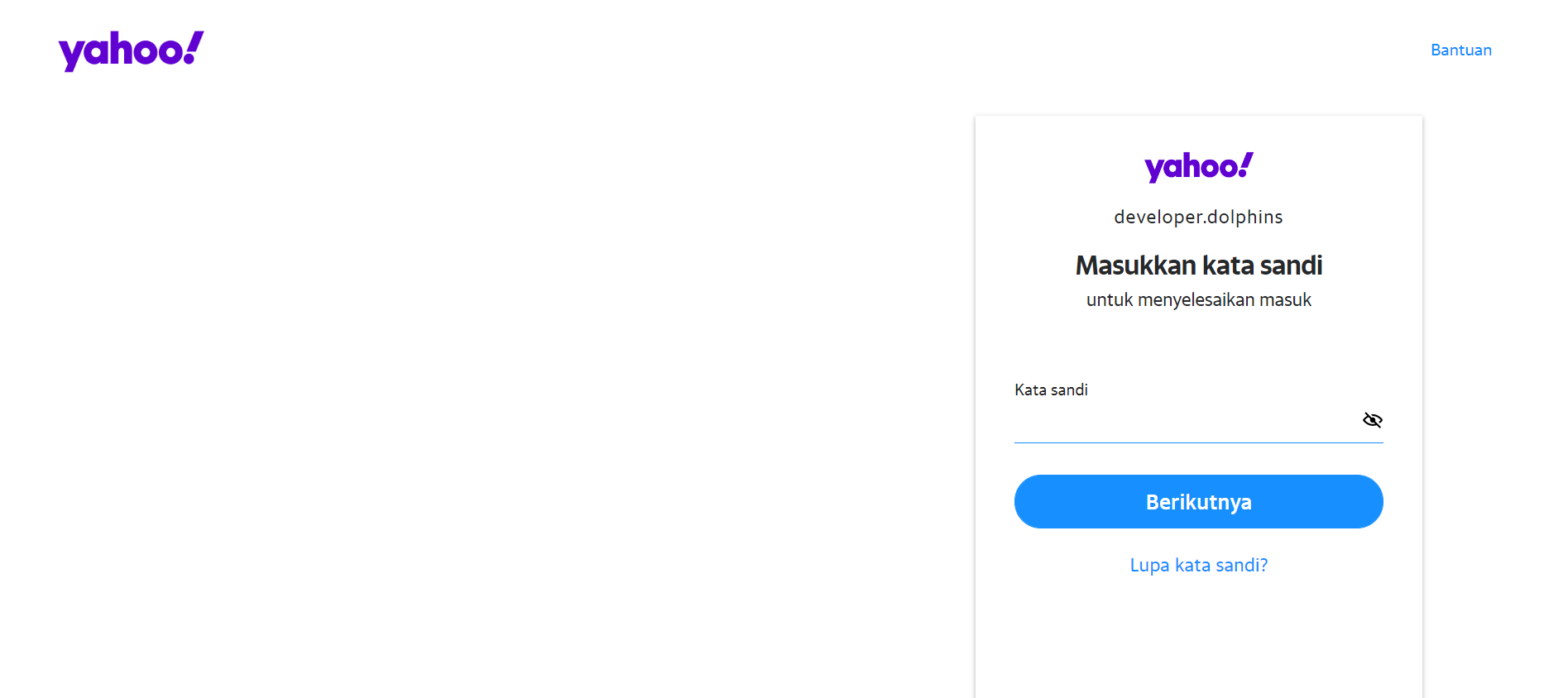
Masukkan password akun Anda dan klik tombol **'Berikutnya'**.

<figure><img src="/files/P0wo3tCEK4BmgEO8C7lv" alt=""><figcaption><p>Enter Password</p></figcaption></figure>

Lalu, Anda diarahkan kembali ke halaman utama yahoo. Pada ikon profile Anda, klik tombol **'Info Akun'** atau **'Pengaturan'** untuk masuk ke halaman pengaturan yahoo.&#x20;

<figure><img src="/files/PE3AUjb9899Uv6H1mlHL" alt=""><figcaption><p>Yahoo Main Page</p></figcaption></figure>

Anda akan melihat halaman settings, klik menu **Keamanan Akun**. Kemudian gulir halaman ke bawah sampai bagian **Kata Sandi Aplikasi** dan klik tombol **'Hasilkan kata sandi aplikasi'**.

<figure><img src="/files/jcyHCEwVF94vInsz89C5" alt=""><figcaption><p>Account Security</p></figcaption></figure>

Anda Akan melihat pop-up penjelasan mengenai kata sandi aplikasi kemudian klik tombol **'Mulai'**.&#x20;

<figure><img src="/files/jlwTZ3rvva8n53RYVom5" alt=""><figcaption><p>App Password</p></figcaption></figure>

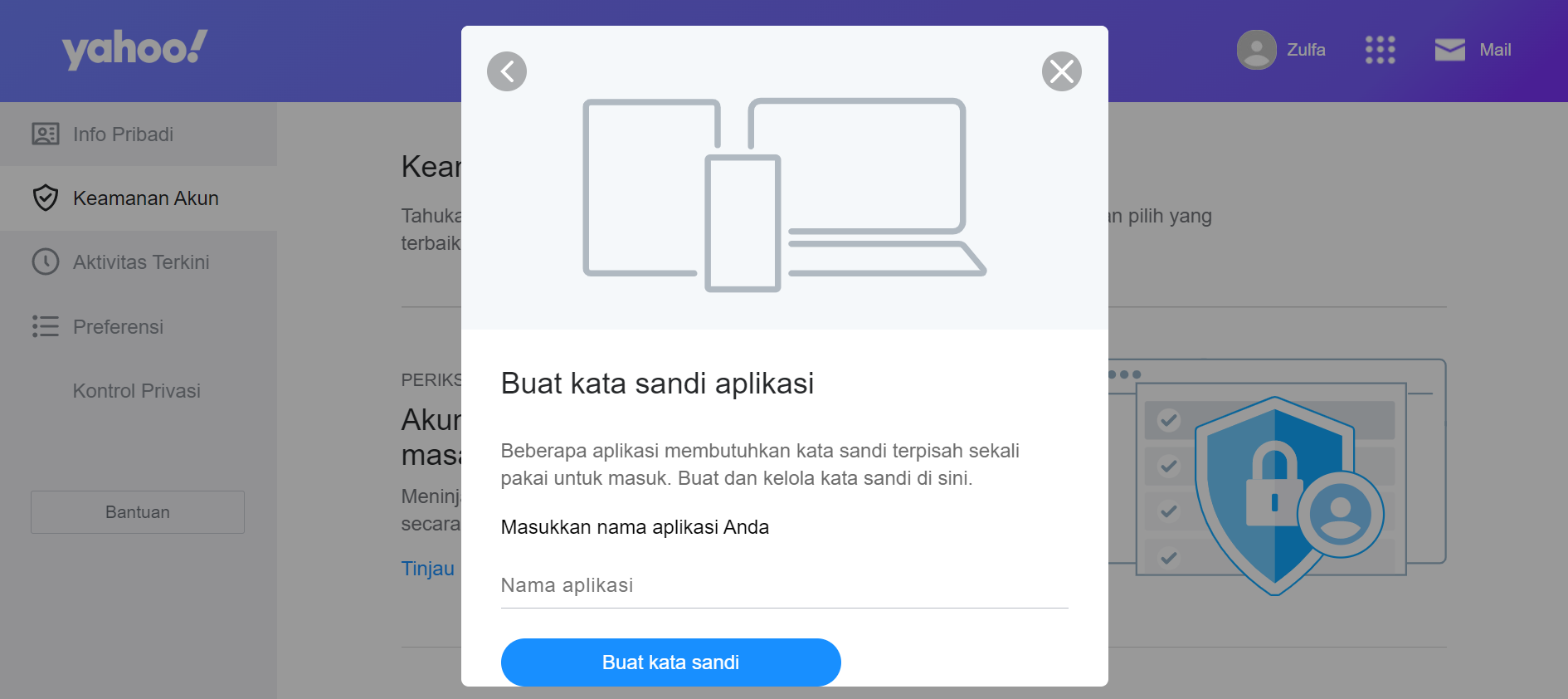
Masukkan nama app pasword Anda dan klik tombol **'Buat kata sandi'**.&#x20;

<figure><img src="/files/oa1ROGwT52UdND5w4FLC" alt=""><figcaption><p>Create App Password</p></figcaption></figure>

Anda akan melihat app password yang diberikan oleh yahoo dan simpan password tersebut. Lalu, klik tombol '**Selesai'**.

<figure><img src="/files/CZsbIlRh0Ih5wobvdG7S" alt=""><figcaption><p>Generated App Password</p></figcaption></figure>


---

# Agent Instructions
This documentation is published with GitBook. GitBook is the documentation platform designed so that both humans and AI agents can read, navigate, and reason over technical content effectively. Learn more at gitbook.com.

## Querying This Documentation
If you need additional information that is not directly available in this page, you can query the documentation dynamically by asking a question.

Perform an HTTP GET request on the current page URL with the `ask` query parameter, and the optional `goal` query parameter:

```
GET https://docs.3dolphins.ai/5.3.0-id/integration/chanel-connector/email-inbox/yahoo-settings.md?ask=<question>&goal=<endgoal>
```

`ask` is the immediate question: it should be specific, self-contained, and written in natural language.
`goal` is optional and describes the broader end goal you are ultimately trying to accomplish on behalf of the user. GitBook uses it to tailor the answer towards what is most useful for that goal.

The response will contain a direct answer to the question and relevant excerpts and sources from the documentation.

Use this mechanism when the answer is not explicitly present in the current page, you need clarification or additional context, or you want to retrieve related documentation sections.