> For the complete documentation index, see [llms.txt](https://docs.3dolphins.ai/llms.txt). Markdown versions of documentation pages are available by appending `.md` to page URLs; this page is available as [Markdown](https://docs.3dolphins.ai/marketing/template/request-template/utility-template/buttons-template.md).

# Buttons Template

This feature allows you to add an action button for customers to click when they receive the message. There are several button options available, namely **Quick Reply** and three **Call To Action** (CTA) buttons, i.e. **Website**, **Call** , and **Copy Offer Code**. &#x20;

The following are the terms for each CTA button:

| Category        | Limitation                                                                                                                      |
| --------------- | ------------------------------------------------------------------------------------------------------------------------------- |
| Number          | The maximum number of buttons that can be used is 10 buttons.                                                                   |
| Quick Reply     | The maximum number of buttons for **'Quick Reply'** is 10 buttons (if only **'Quick Reply'** buttons are used).                 |
| Call            | The maximum number of buttons for **'Call'** is 1 button.                                                                       |
| Website/URL     | For the **'Website/URL'** button, the maximum number of buttons that can be used is 2 buttons (**'Static'** and **'Dynamic'**). |
| Copy Offer Code | The maximum number of buttons that can be used for **'Copy Offer Code'** is 1 button.                                           |

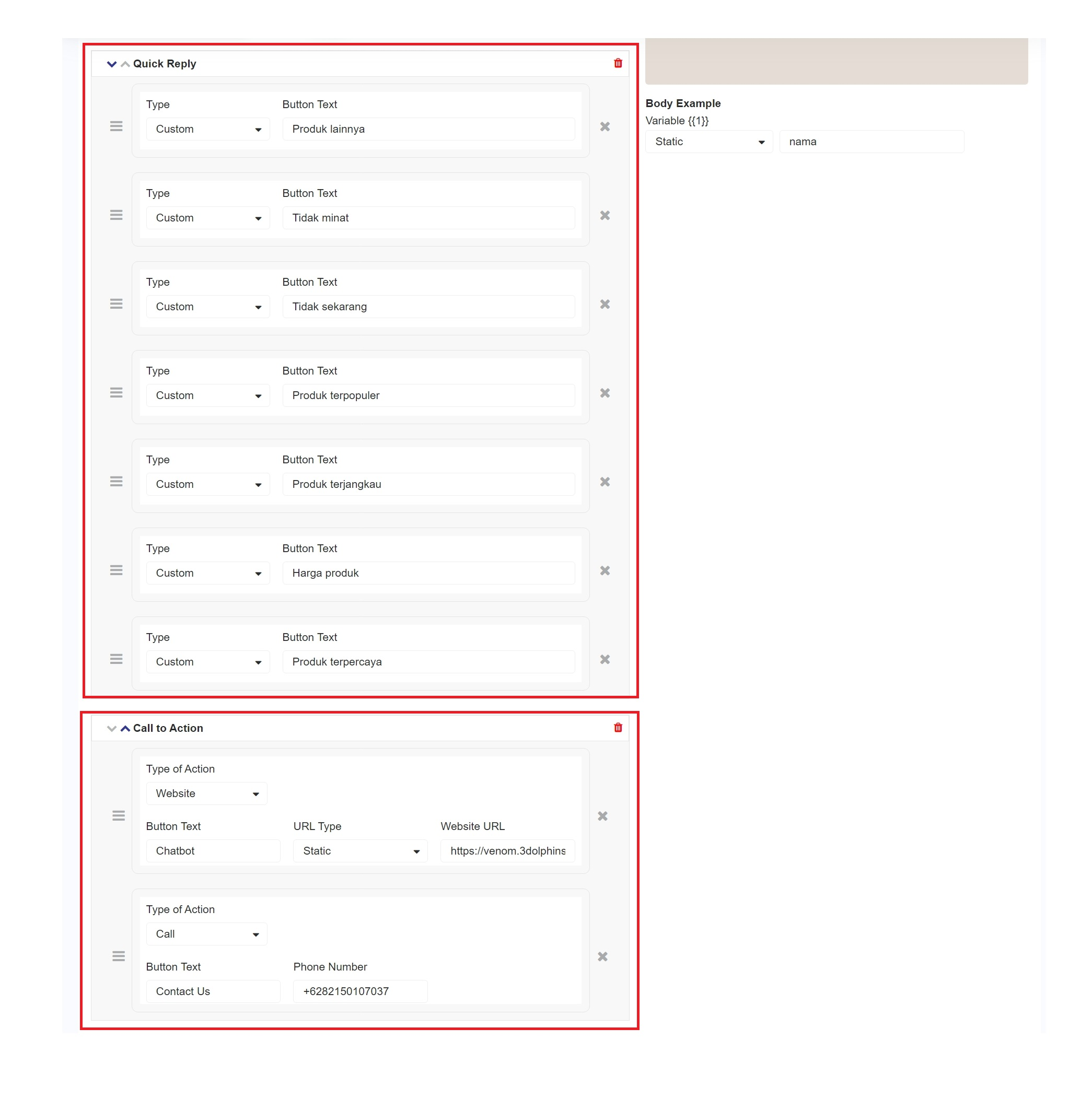
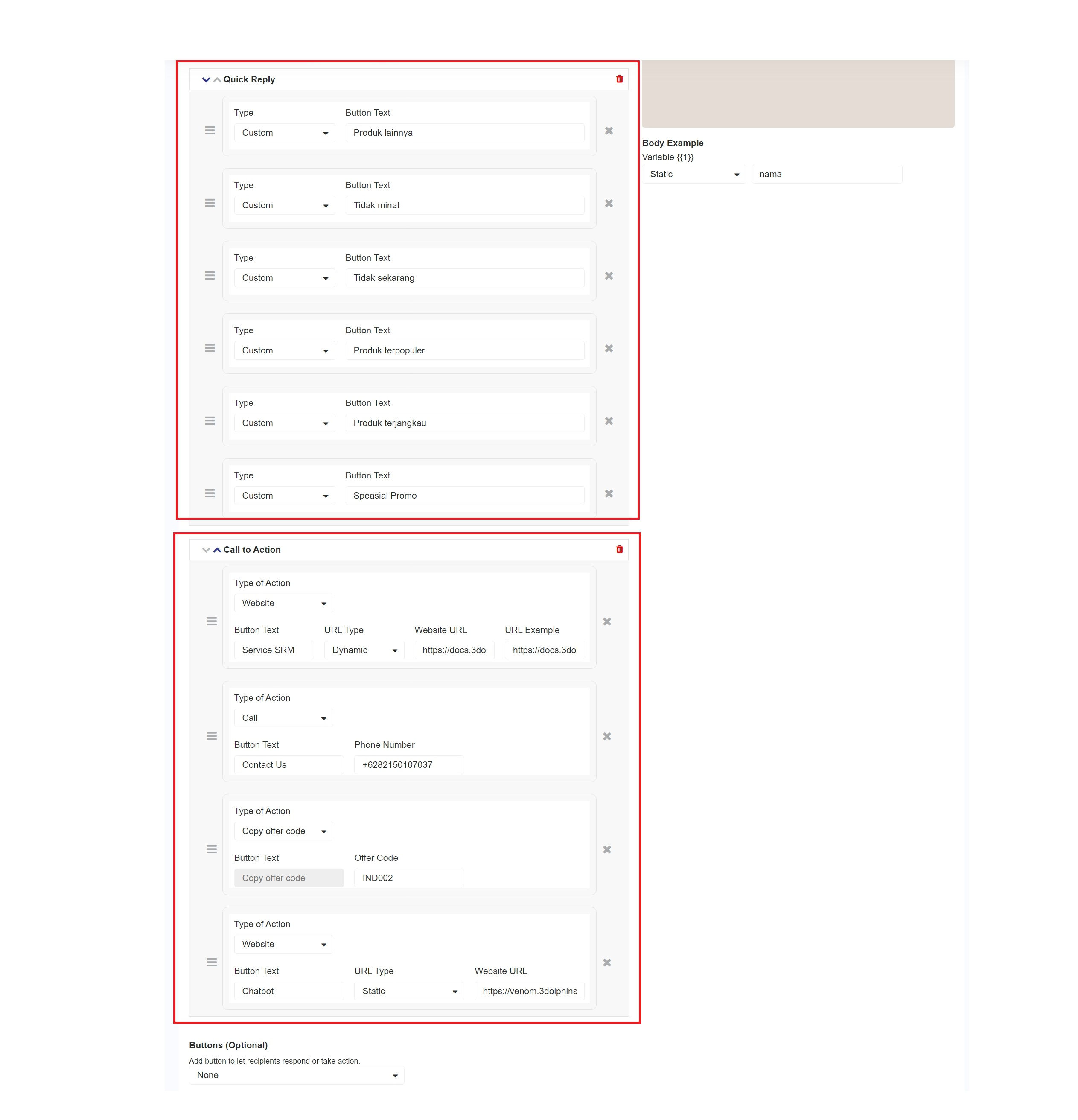
For example, if you want to create **6 Quick Reply buttons**, the remaining **'Call To Action' (CTA)** buttons that can be created are **4 buttons**, consisting of **1 'Call' button, 1 'Copy Offer Code' button,** and **2 'Website' buttons**. This is because the maximum number of buttons that can be created is **10 buttons.**&#x20;

<figure><img src="/files/1OAFvwB63ohAnEYrHirz" alt=""><figcaption><p>Maximum Buttons</p></figcaption></figure>

If you want to use multiple actions, there are several grouping requirements as follows.

| Category         | Limitations                                                                                    |
| ---------------- | ---------------------------------------------------------------------------------------------- |
| Valid Grouping   | Valid only when the **'Quick Reply'** button is followed by another **'Quick Reply'** buttons. |
|                  | Valid if **'Quick Reply'** button is followed by **'Call To Action' (CTA)** buttons.           |
|                  | Valid if **'Call To Action' (CTA)** button is followed by **'Quick Reply'** buttons.           |
| Invalid Grouping | Invalid if **'Call To Action' (CTA)** button is placed between **'Quick Reply'** buttons.      |
|                  | Invalid if **'Quick Reply'** button is placed between **'Call To Action' (CTA)** buttons.      |

If you want to create **Quick Reply** button, it will be valid only if accompanied by **'Call to Action' (CTA)** button, such as a **'Website'** button and a **'Call'** button.

<figure><img src="/files/sLTag1GLnc3c9VwIL4ok" alt=""><figcaption><p>Maximum Buttons</p></figcaption></figure>

### Quick Reply

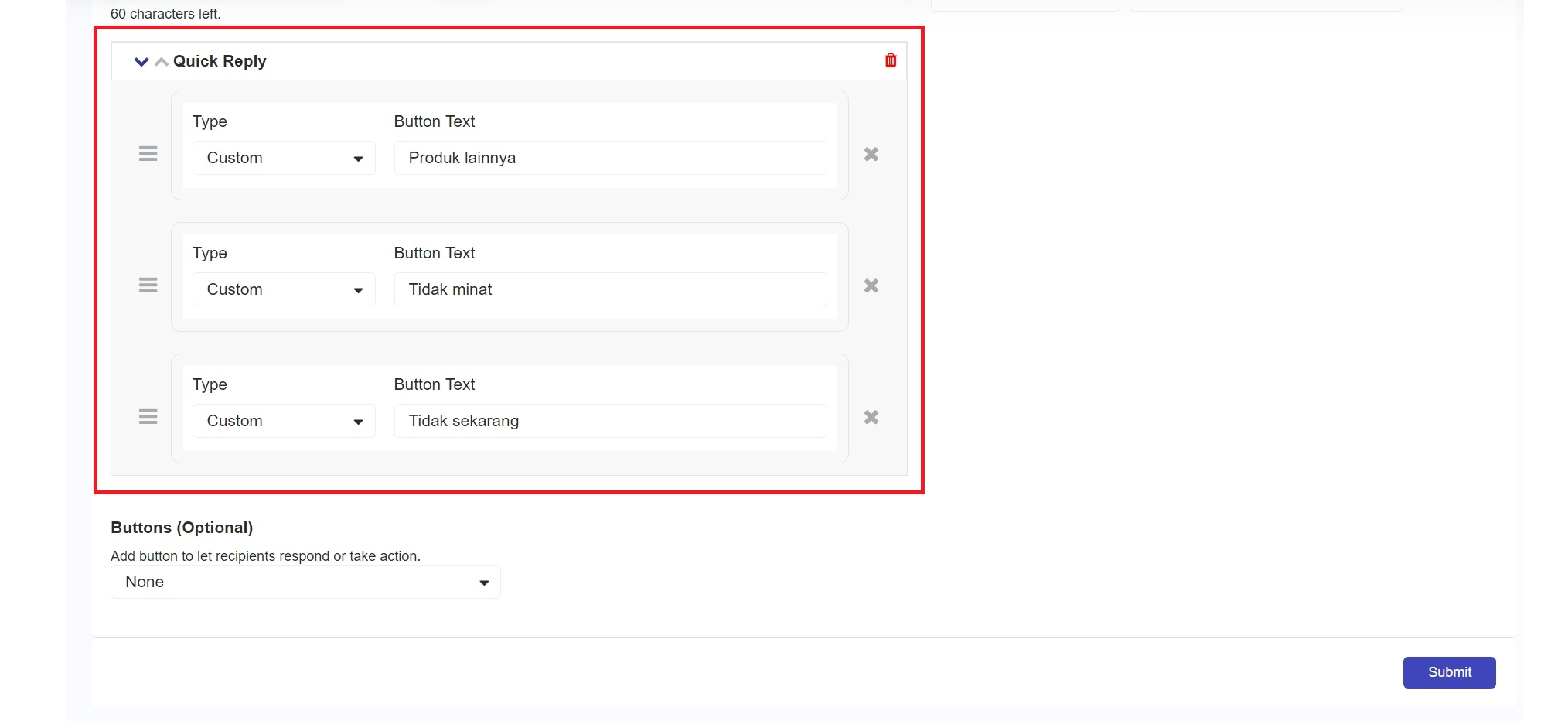
When you want customers to respond quickly without manually typing, you can use the '**Quick Reply'** feature. With this feature, customers simply click the provided button to select the appropriate response.

To create **'Quick Reply'** button, click the **'Buttons'** dropdown and select **'Quick Reply'**, then enter the text you want to display.

<figure><img src="/files/mkA9mbQ3xCaC8NCK3ntK" alt=""><figcaption><p> Quick Reply Buttons</p></figcaption></figure>

You will see a box to add a **'Quick Reply'** action button, as shown in the image below.&#x20;

<figure><img src="/files/Lu2h3DVg0inktm8vvHeq" alt=""><figcaption><p>Set Quick Reply Buttons</p></figcaption></figure>

**Component Explanation:**&#x20;

| Name        | Description                                                                                                             |
| ----------- | ----------------------------------------------------------------------------------------------------------------------- |
| Type        | In **'Quick Reply'**, there is only the custom type, which is designed to fill the field according to your preferences. |
| Button text | Used to set the text label on the **'Quick Reply'** button sent to customers.                                           |

### Website/URL

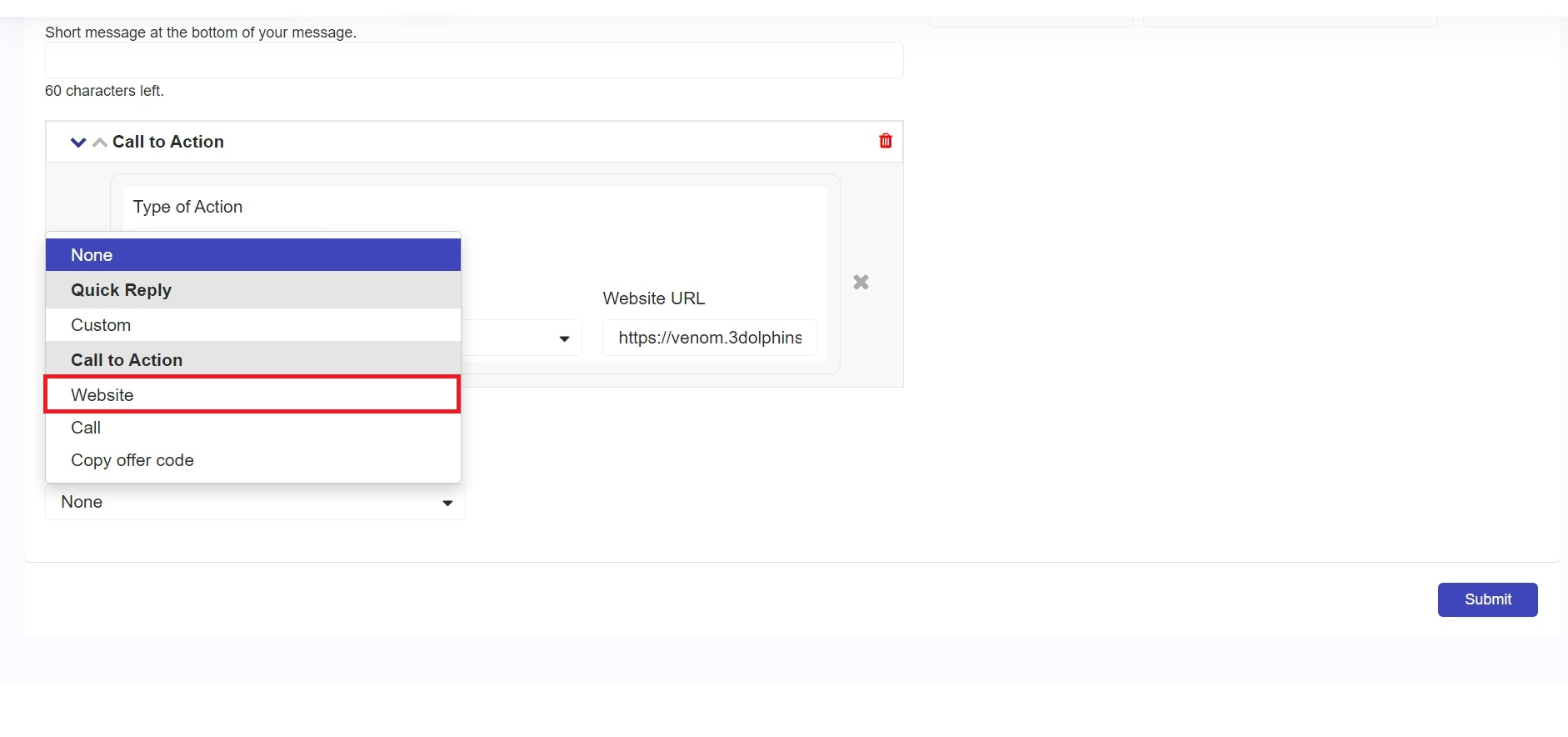
When you want to direct customers to a website after clicking a button, you can use the **'Website/URL'** button feature. To create website button, click the **'Buttons'** dropdown, select **'Website'**, then enter the text you want to display.&#x20;

<figure><img src="/files/3dWujUqcnESajEM2M8FP" alt=""><figcaption><p>Website/URL Buttons</p></figcaption></figure>

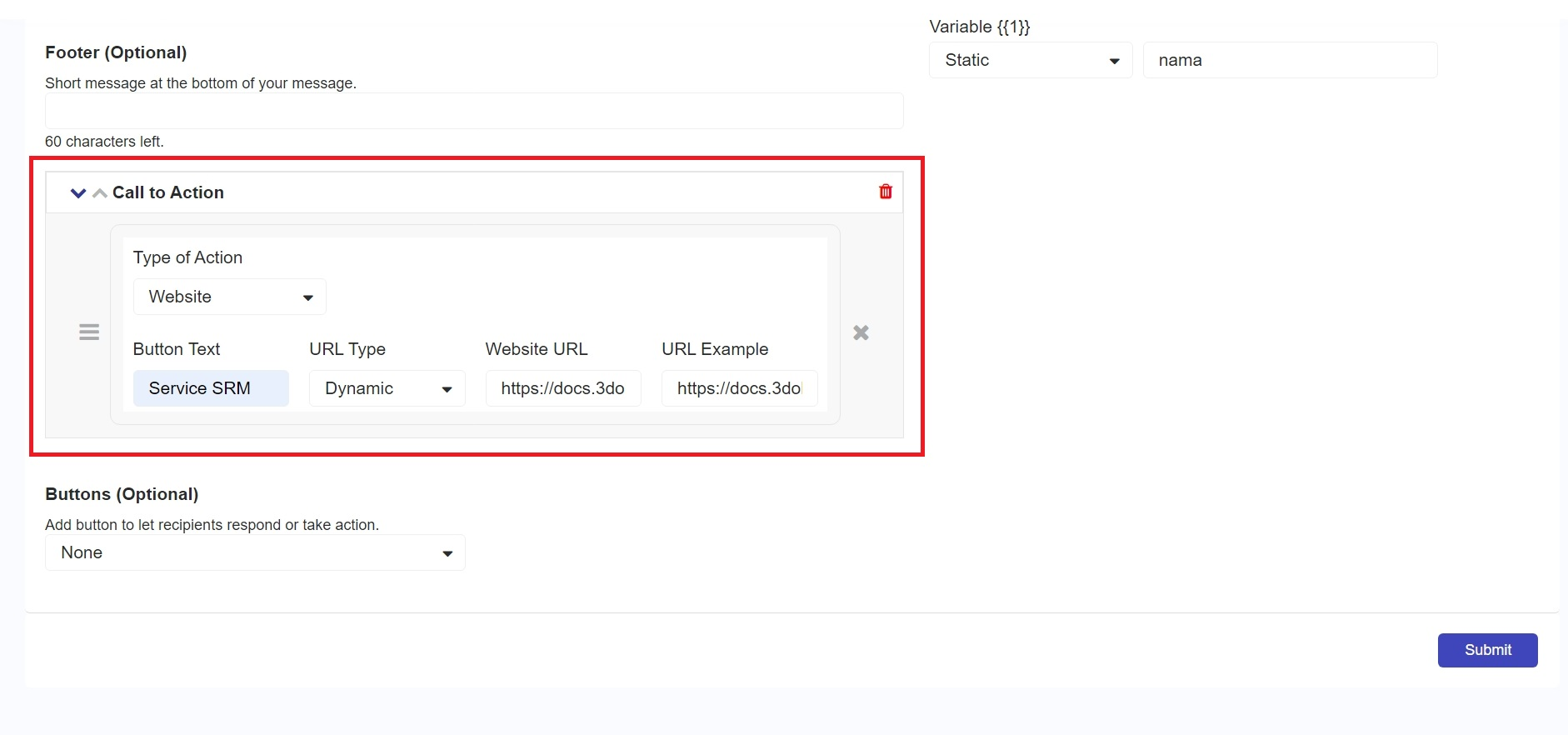
Once the **'Website/URL'** button has been added, you will see a box like the one below.

<figure><img src="/files/O4is0IF99bT9EHjW0IHw" alt=""><figcaption><p>Set Website/URL Buttons</p></figcaption></figure>

**Component Explanation:**

| Name           | Description                                                                                     |
| -------------- | ----------------------------------------------------------------------------------------------- |
| Type of Action | You can choose one of the three button options, i.e. **Website, Call,** or **Copy Offer Code.** |
| Button text    | The text that will be displayed on the button.                                                  |
| URL Type       | There are 2 types of **URL Type** button, i.e. **Static** and **Dynamic.**                      |
| URL Example    | To test the URL where the end of the URL is filled with actual data.                            |

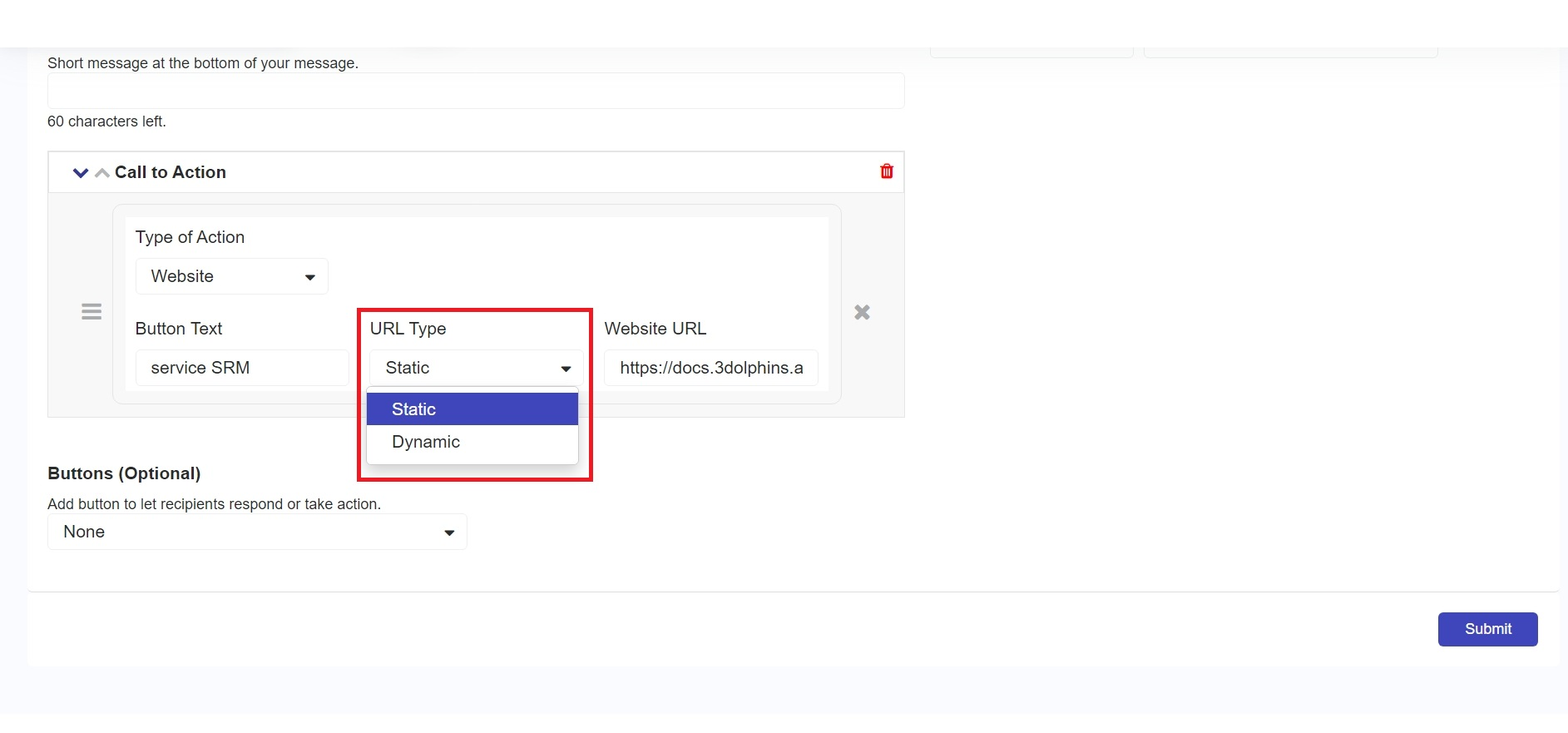
You can change the **URL Type** to **Static** or **Dynamic** based on your needs.

* If you want all customers to be directed to the same page, use the **Static** URL Type.
* If you want customers to be directed to a specific page based on their data, use the **Dynamic** URL Type.

<figure><img src="/files/p6rcMHtSEMifSm3y6Uoz" alt=""><figcaption><p>Website/URL Button Type</p></figcaption></figure>

### Call

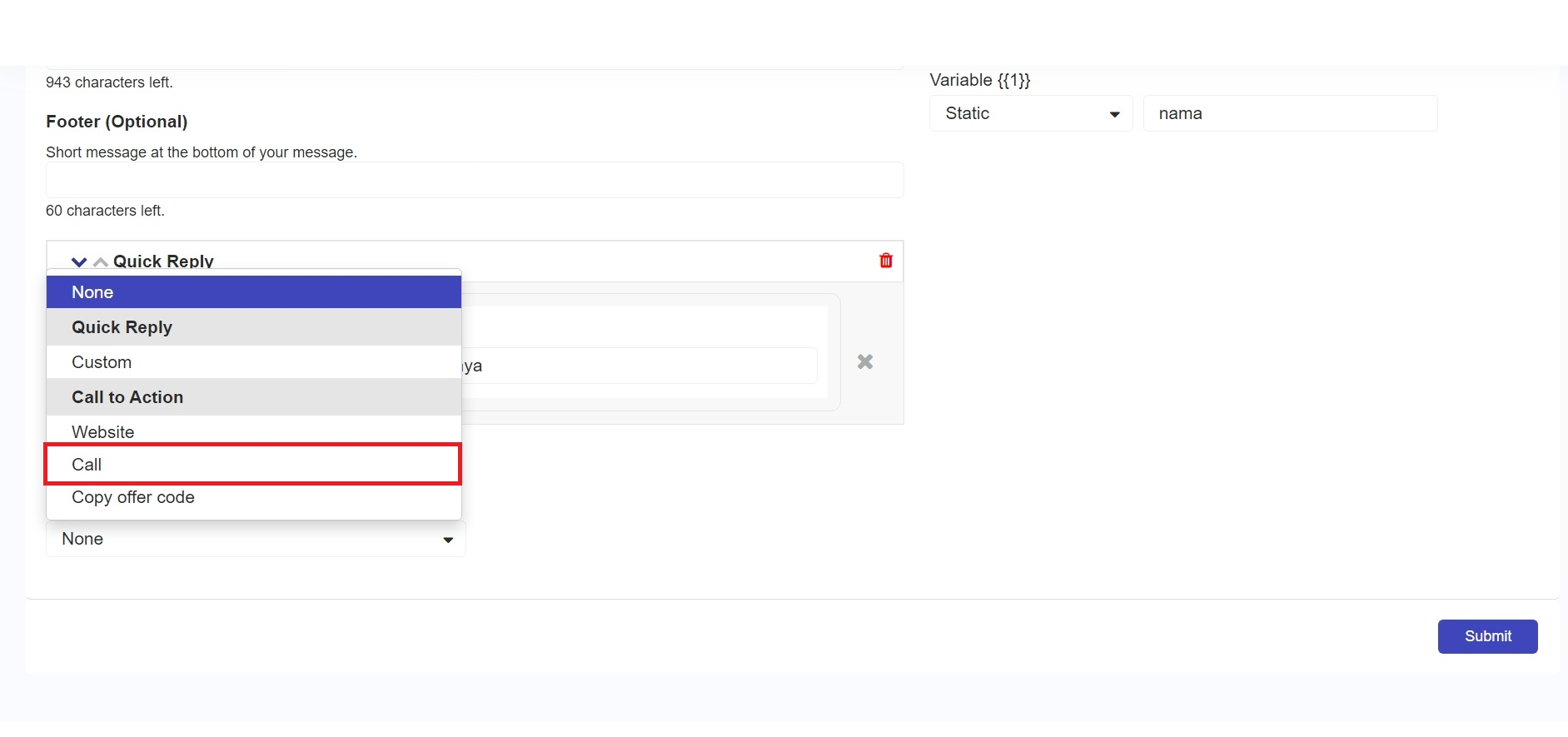
When you want customers to directly contact a specific number, you can use the **'Call'** button feature. To create action **'Call'** button, click the **'Buttons'** dropdown and click **'Call'**.&#x20;

<figure><img src="/files/pNM10N81EQW9wF1hgzHq" alt=""><figcaption><p>Call Button</p></figcaption></figure>

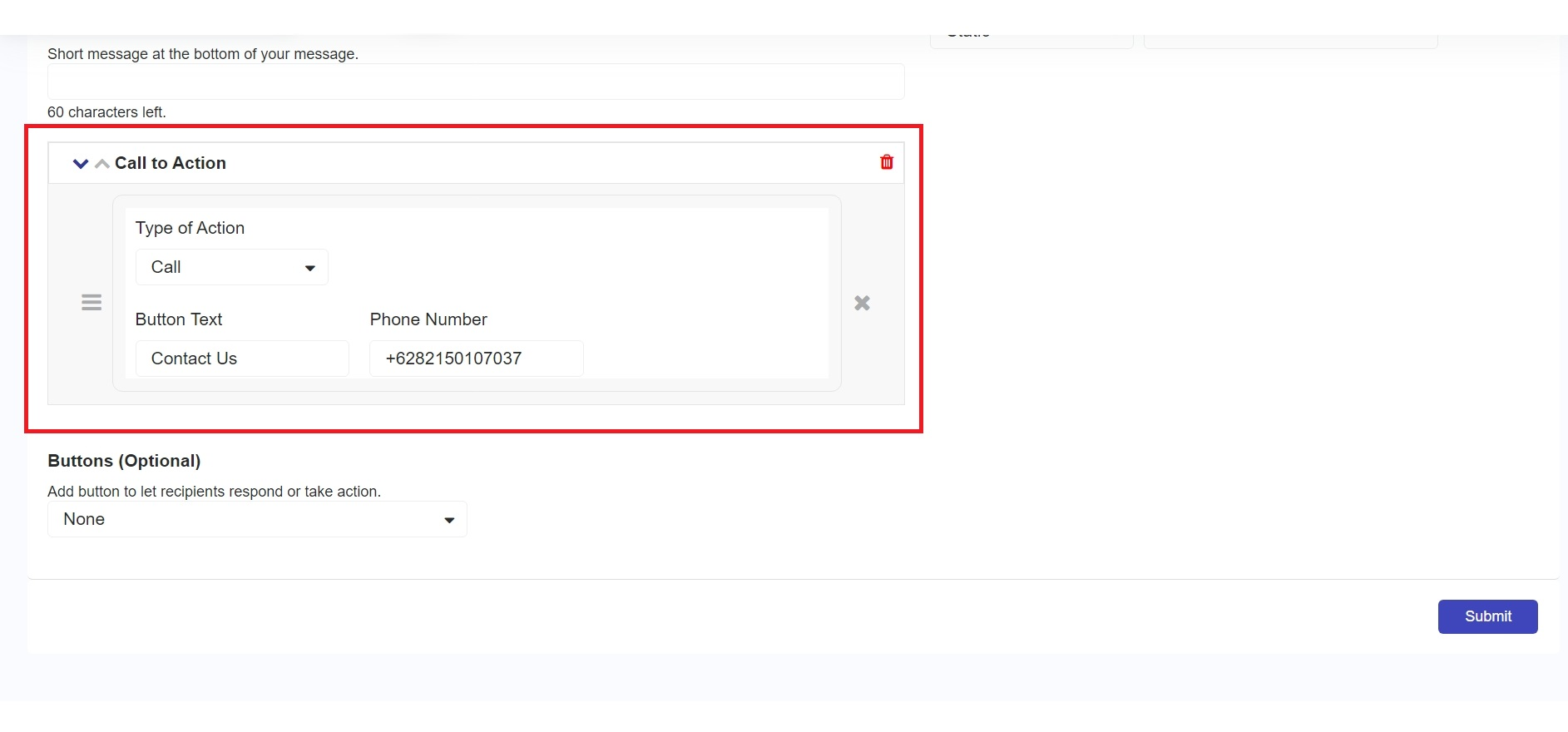
When the **'Call'** button has been added, you will see something like this.&#x20;

<figure><img src="/files/OFqMQ8aZCbWzEMbrs1oS" alt=""><figcaption><p>Set Call Buttons</p></figcaption></figure>

**Component Explanation:**

| Name           | Description                                                                                           |
| -------------- | ----------------------------------------------------------------------------------------------------- |
| Type of Action | You can choose one of the three button options, i.e. **'Website', 'Call',** or **'Copy Offer Code'.** |
| Button text    | The text that will be displayed on the button.                                                        |
| Phone Number   | You can enter the phone number that customers can contact when they press the **'Call'** button.      |

### Copy Offer Code

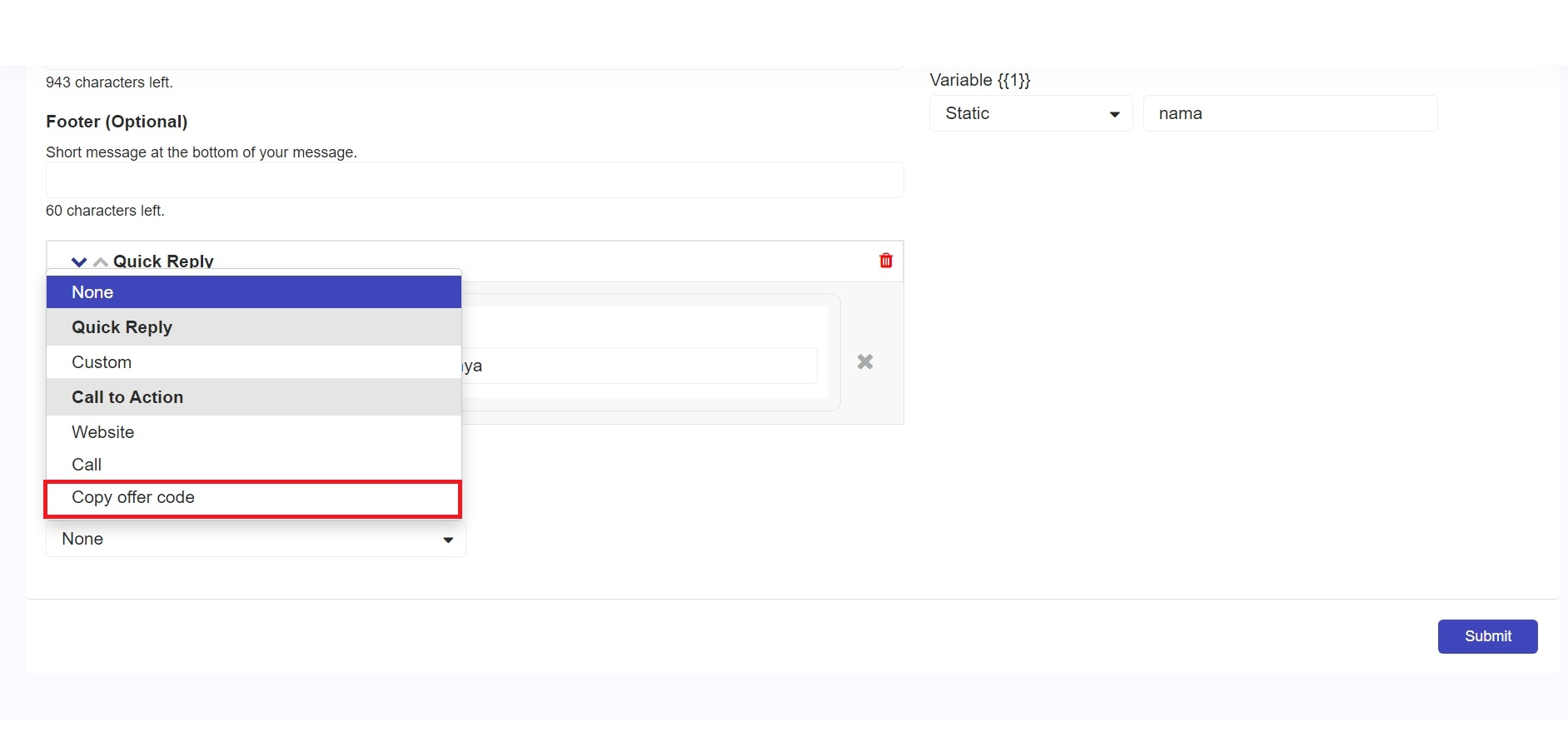
When you want customers to easily copy and use a promo code or available offer, you can use the **'Copy Offer Code'** feature. With this feature, customers can simply click the button without having to manually retype the code. To create a **'Copy Offer Code'** button, click the **'Buttons**' dropdown and select **'Copy Offer Code'.**

<figure><img src="/files/KF4ziDArLr1t4Q8Es0dx" alt=""><figcaption><p>Copy Offer Code Button</p></figcaption></figure>

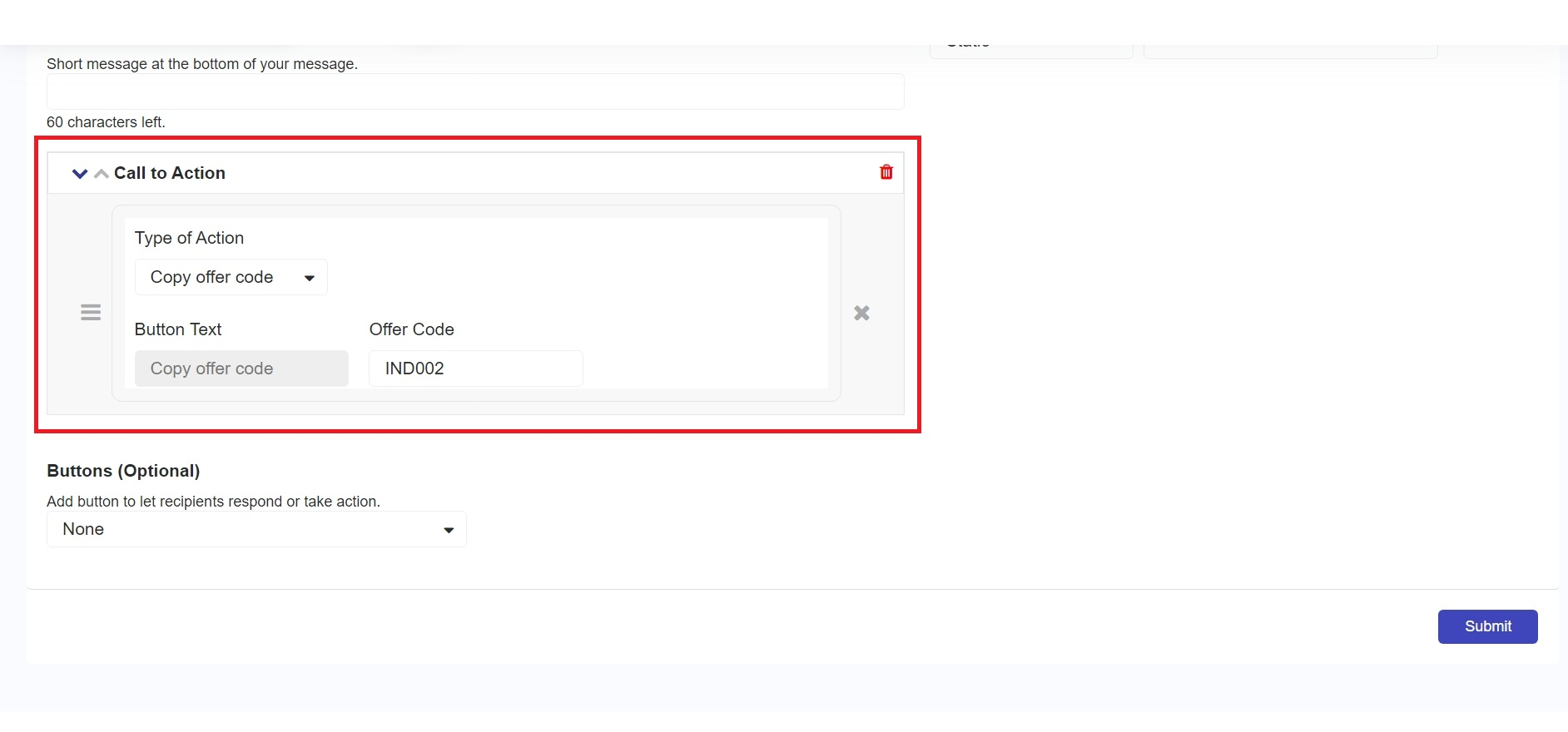
Once the **'Copy Offer Code'** button has been added, a box like the one below will appear.

<figure><img src="/files/ZpKqkuhPvMlBcDz34ryx" alt=""><figcaption><p>Set Copy Offer Code Buttons</p></figcaption></figure>

**Component Explanation:**

| Name           | Description                                                                                           |
| -------------- | ----------------------------------------------------------------------------------------------------- |
| Type of Action | You can choose one of the three button options, i.e. **'Website', 'Call',** or **'Copy Offer Code'.** |
| Button text    | The text that will be displayed on the button.                                                        |
| Offer Code     | A promo or discount code that you can enter so customers can copy the code.                           |

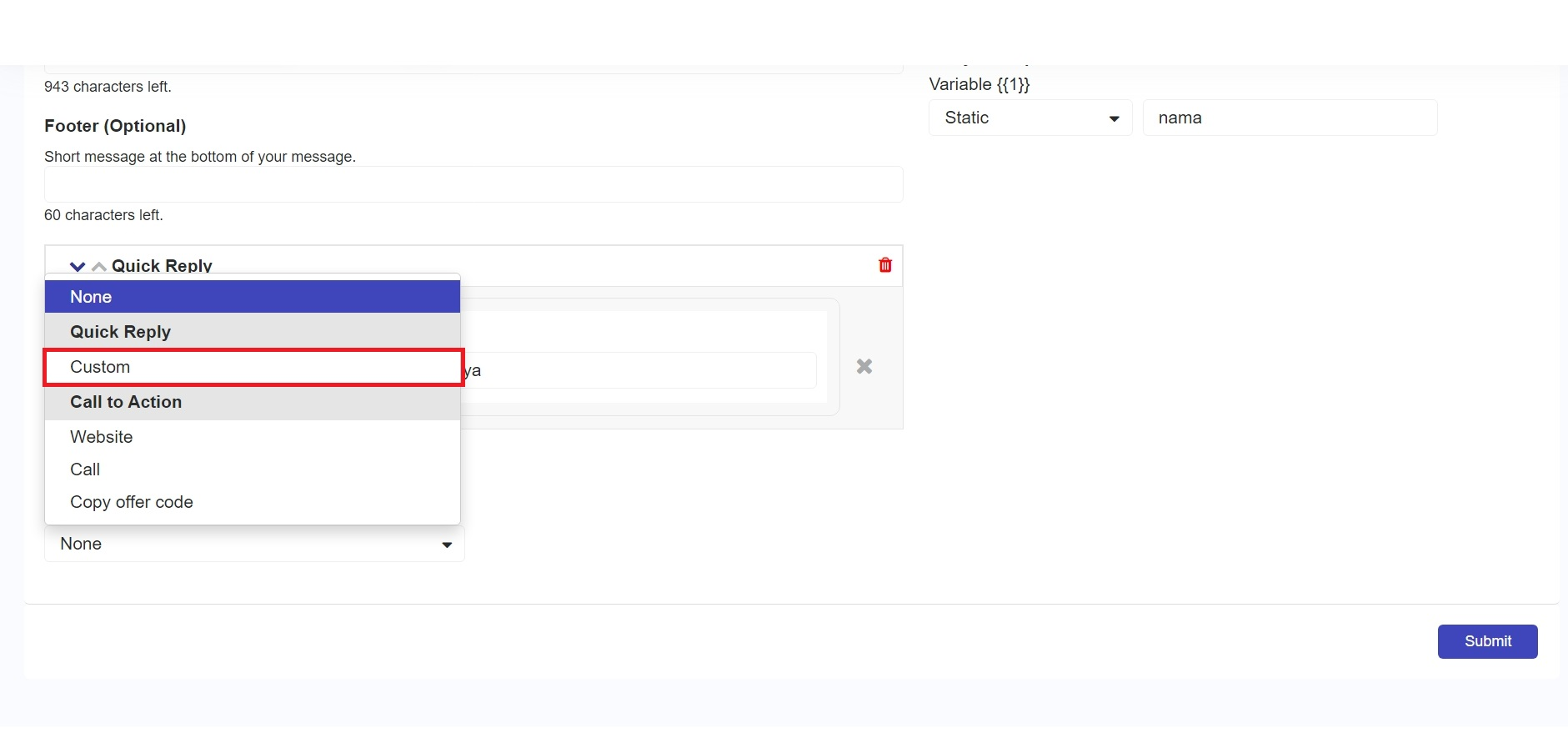
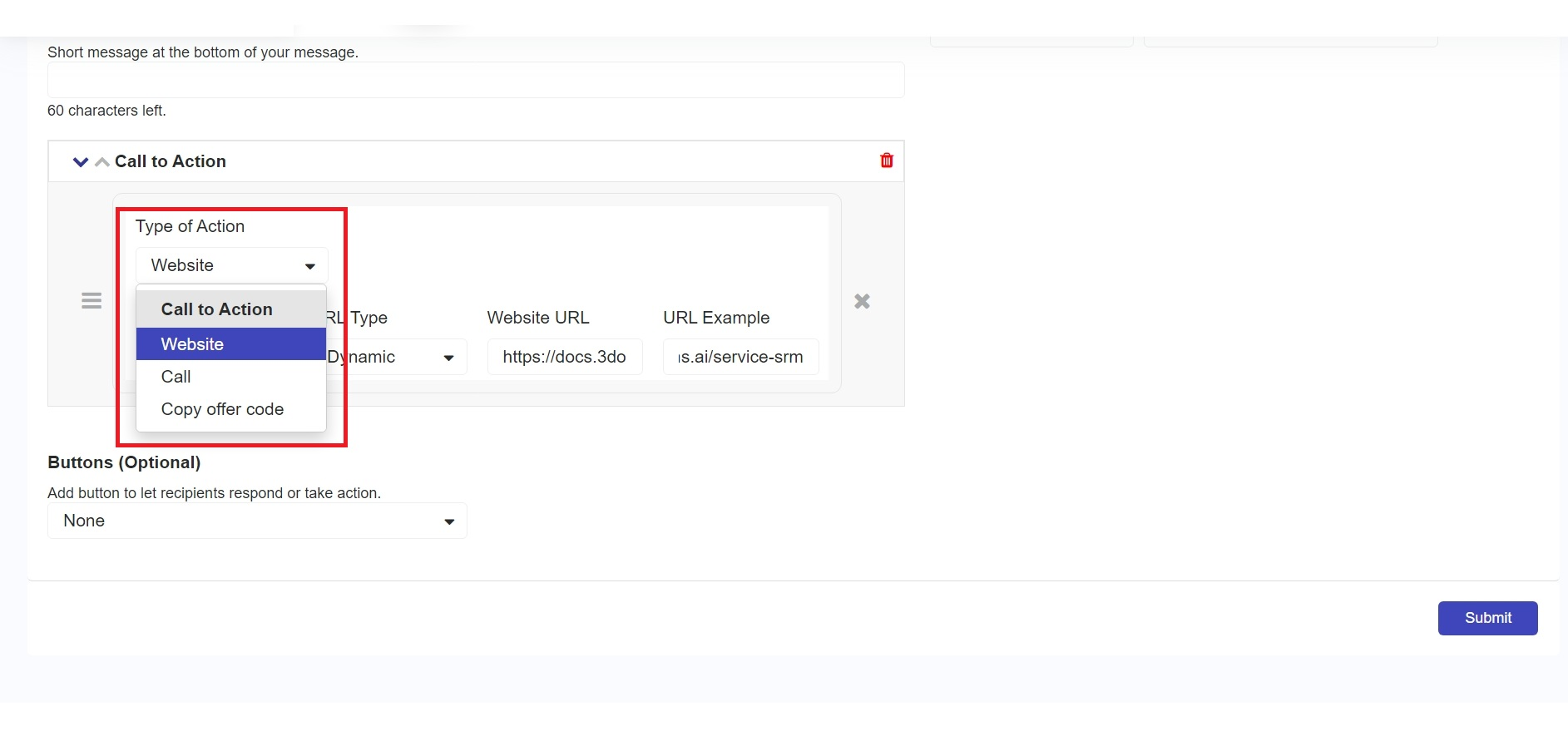
When you feel the need to change or modify an action, you can click the '**Type Of Action'** dropdown, as shown in the following image.&#x20;

<figure><img src="/files/yOrEID3jriFlqRfNEpW8" alt=""><figcaption><p>Change Action Button</p></figcaption></figure>

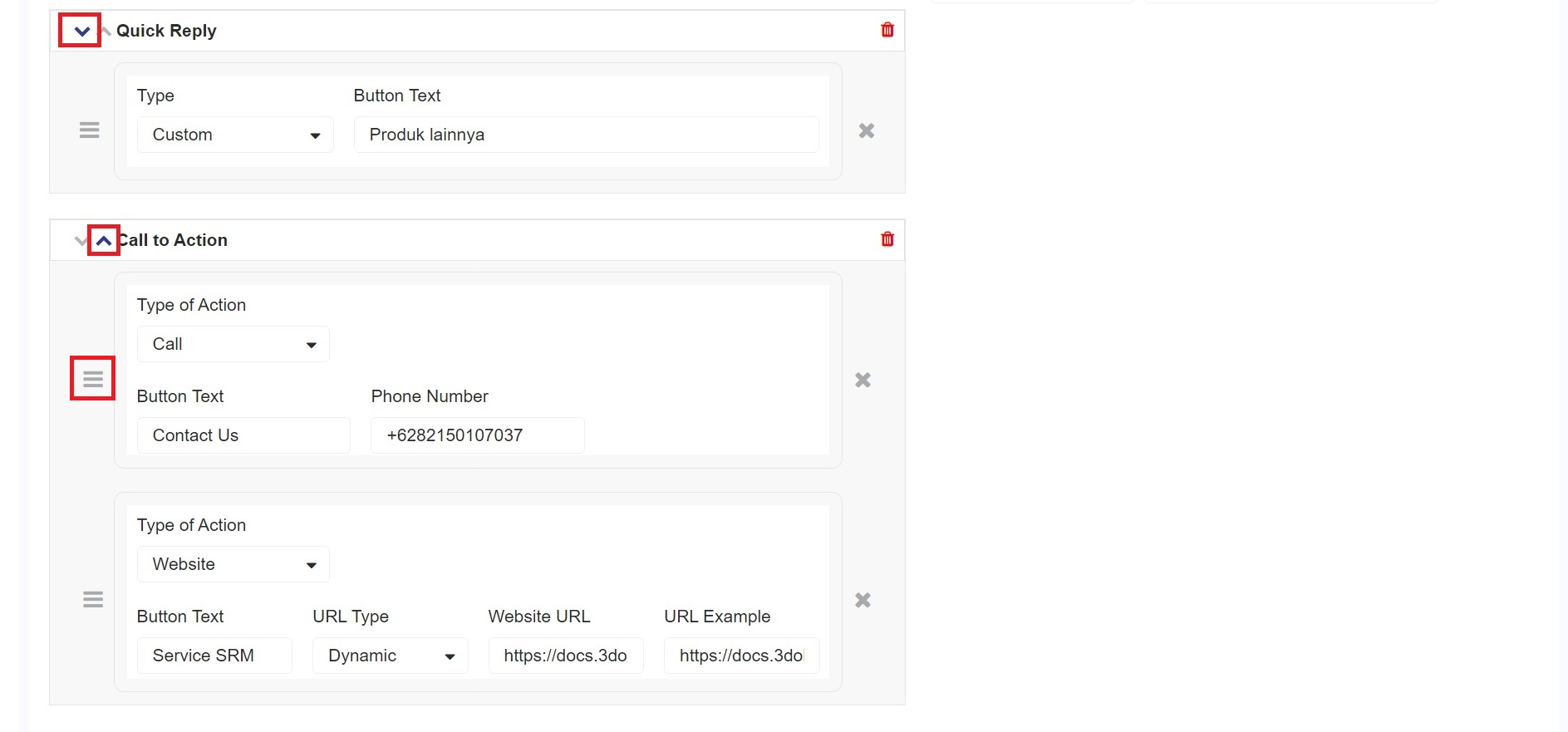
To reorder actions, you can click the **icon (** ![](/files/kN6Ouz4VoaDzjeWPdz0i) ) or ( ![](/files/4r804FUH3X8ecpCMdzko)). You can also reorder types within an action by dragging the icon ( <img src="/files/EOt5MRBmBaRyUh8kEjn5" alt="" data-size="line">).&#x20;

<figure><img src="/files/K9p2wuVn9627E1n7KPpm" alt=""><figcaption><p>Change Order Action Buttons</p></figcaption></figure>

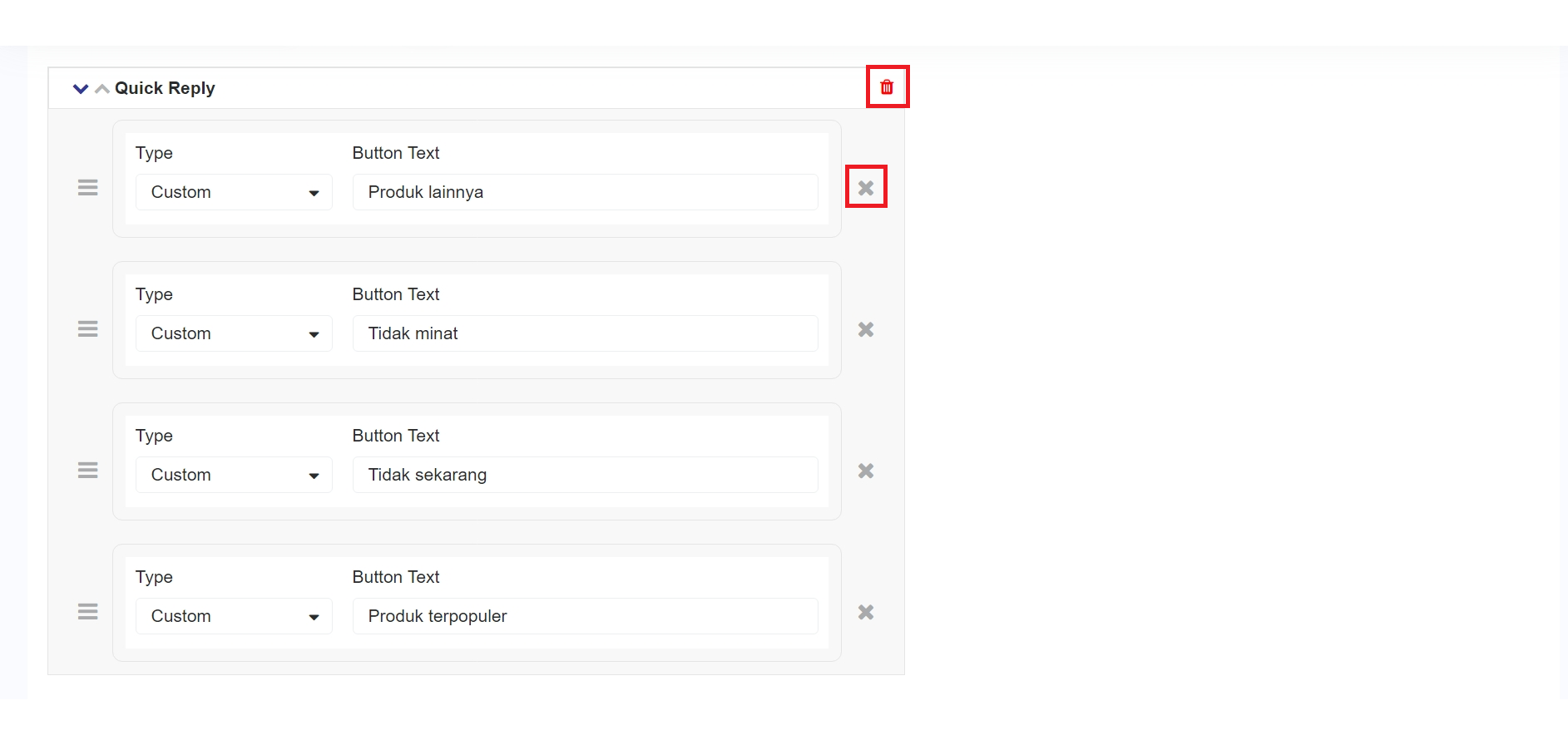
When you feel the need to delete an action, you can click the icon ( ![](/files/2cqGUwrjigMbAmCmgyy4)) to delete the action or click the icon (![](/files/Uki2fuceoqk3Wvx1rbfk) ) to delete the type of action.

<figure><img src="/files/kJHTGQ3Q6C0m9W3Sj2hM" alt=""><figcaption><p>Delete Action</p></figcaption></figure>

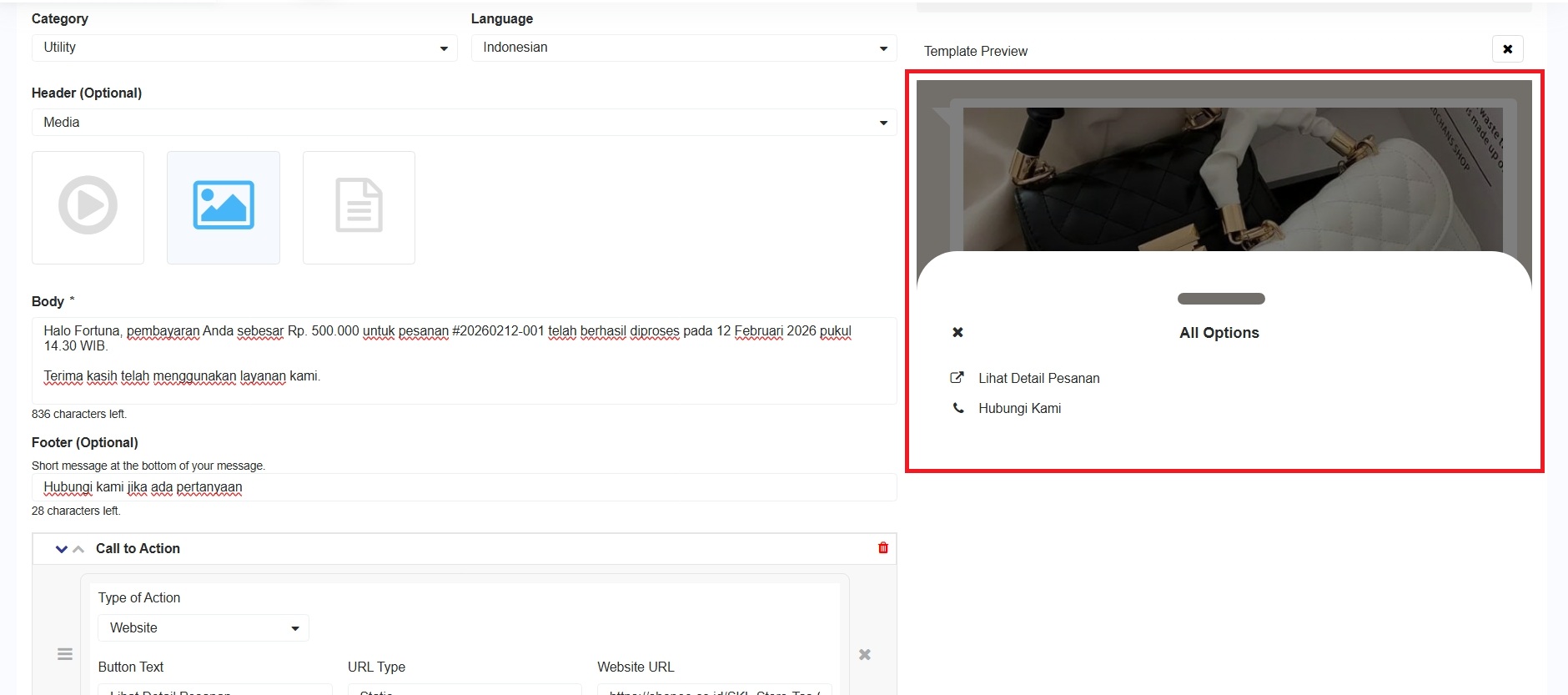
To view all the buttons that have been created, check the **Template Preview** section and click the **'Play'** button, as shown in the following image.

<figure><img src="/files/U0HB2ADQaakZEjhbYvxE" alt=""><figcaption><p>Template Preview</p></figcaption></figure>

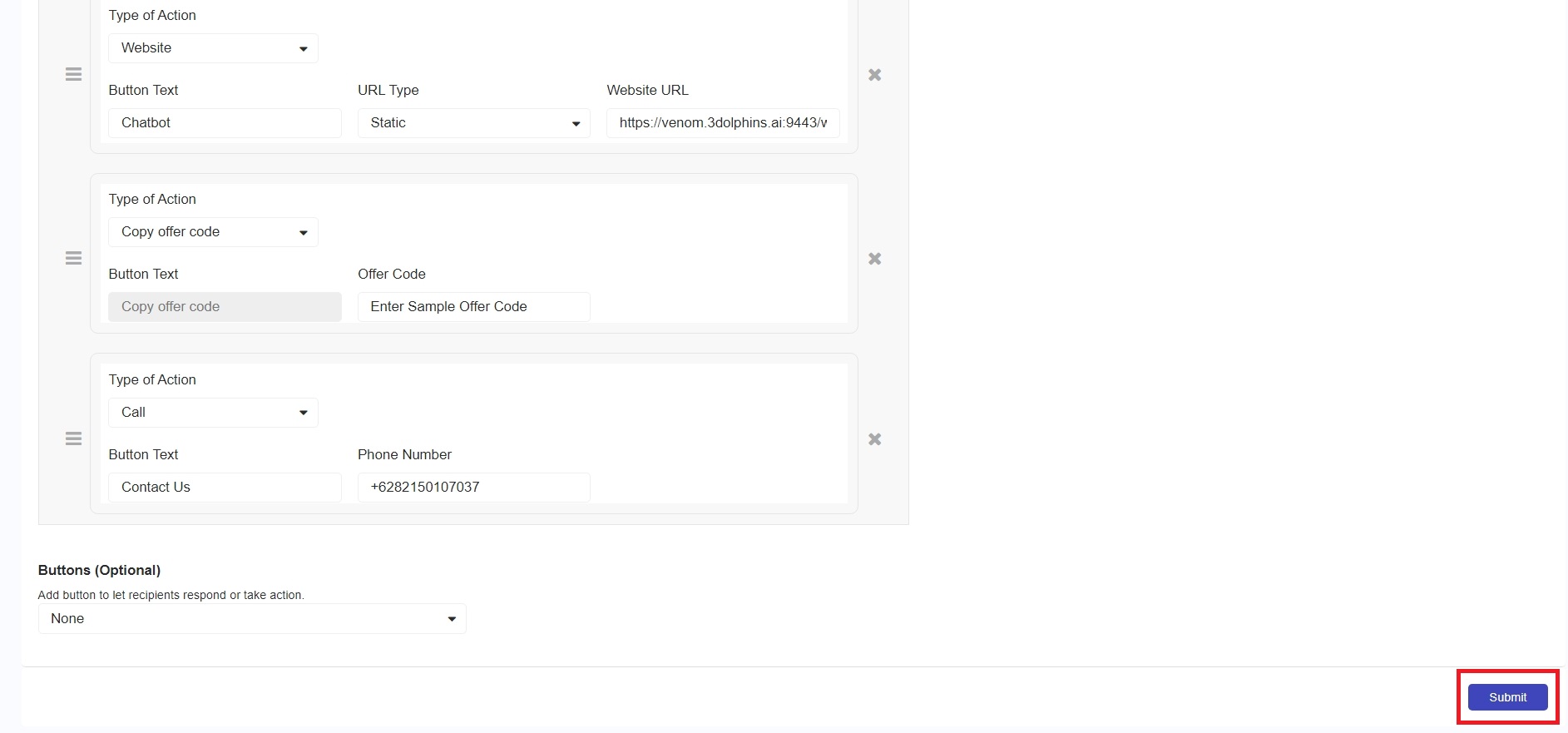
To save the created template, and click the **'Submit**' button.&#x20;

<figure><img src="/files/n5NQnd5VHY4X29BSosm8" alt=""><figcaption><p>Save Template</p></figcaption></figure>

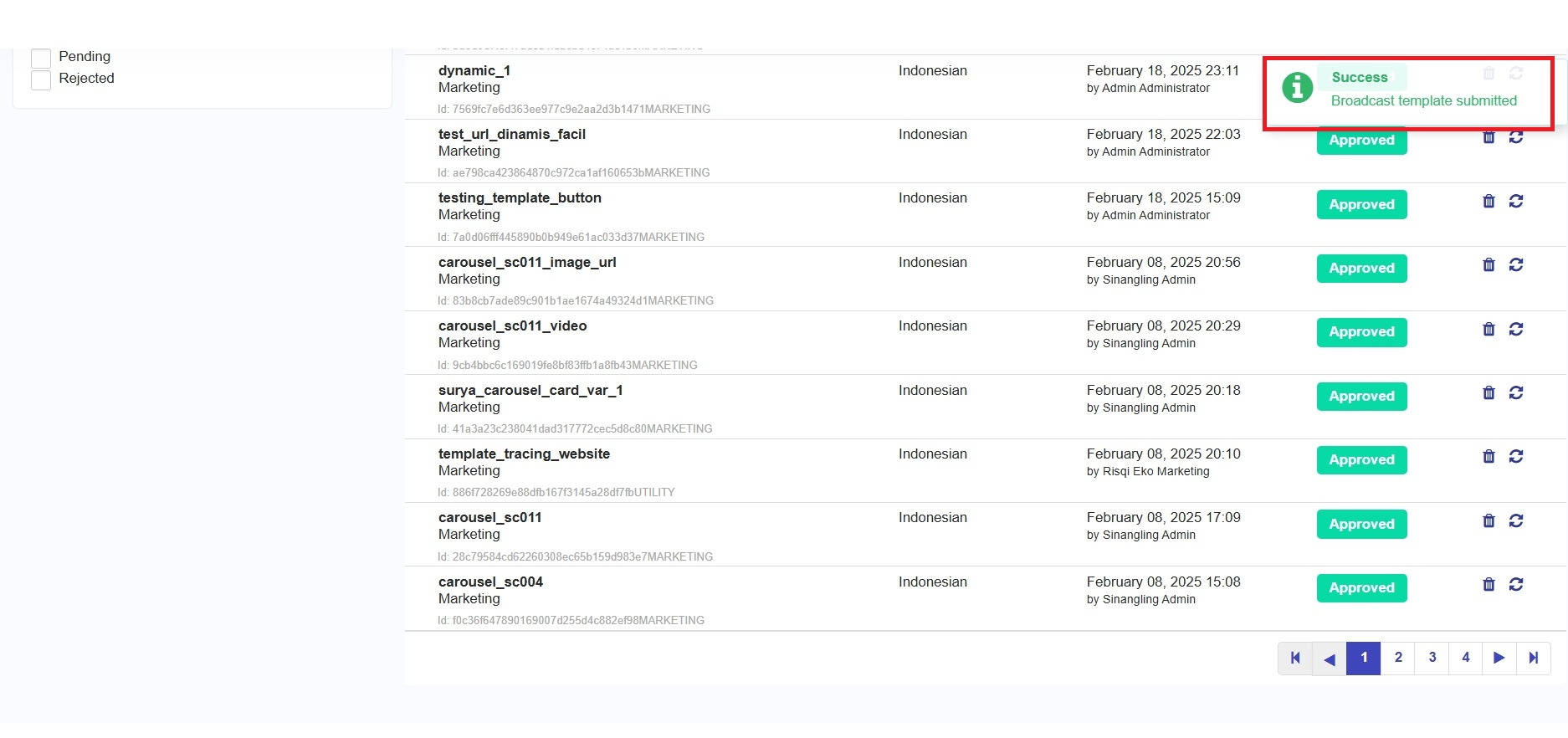
You will success notification once the template has been successfully saved, as follows.&#x20;

<figure><img src="/files/wMhjAYRSv6p1oZXHkSxT" alt=""><figcaption><p>Success Notification</p></figcaption></figure>


---

# Agent Instructions
This documentation is published with GitBook. GitBook is the documentation platform designed so that both humans and AI agents can read, navigate, and reason over technical content effectively. Learn more at gitbook.com.

## Querying This Documentation
If you need additional information that is not directly available in this page, you can query the documentation dynamically by asking a question.

Perform an HTTP GET request on the current page URL with the `ask` query parameter, and the optional `goal` query parameter:

```
GET https://docs.3dolphins.ai/marketing/template/request-template/utility-template/buttons-template.md?ask=<question>&goal=<endgoal>
```

`ask` is the immediate question: it should be specific, self-contained, and written in natural language.
`goal` is optional and describes the broader end goal you are ultimately trying to accomplish on behalf of the user. GitBook uses it to tailor the answer towards what is most useful for that goal.

The response will contain a direct answer to the question and relevant excerpts and sources from the documentation.

Use this mechanism when the answer is not explicitly present in the current page, you need clarification or additional context, or you want to retrieve related documentation sections.